
ProdRoads documentation
Workspace auto sync
Use Auto Sync Workspace to associate the current .pr file with a .prw workspace.
When the project is opened, ProdRoads checks whether the workspace file has changed and updates key dates, teams, and people while preserving roadmap blocks.
The reference is stored using a portable path when possible. If the workspace file can no longer be found, synchronization is removed but the last imported workspace data remains in the project.
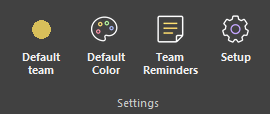
- Open Setup > Workspace.
- Choose Auto Sync Workspace.
- Select the shared `.prw` file.
- Reopen the project whenever the shared structure changes.
Where to find it
See it in action
The example below links the current roadmap to a shared .prw file using Auto Sync Workspace.
Synchronized items
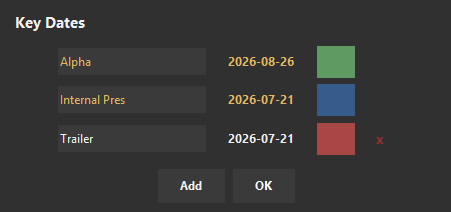
In Key Dates, Devs List, and Team Setup, items provided by the synchronized workspace appear in gold. These items are managed by the shared .prw file, so they cannot be edited or removed from the roadmap while synchronization is active.
Keep project and workspace files in a shared folder structure when roadmaps move between machines.