
ProdRoads documentation
Assign teams
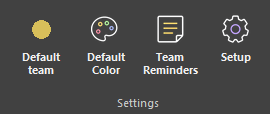
Use Default team in the Settings section to choose the team automatically assigned to newly created blocks. To change an existing block, select it, right-click it, and open Team. Click a team to assign it to the block, or click an assigned team again to remove it.
One block can be assigned to several teams. Use Deselect All to remove every team assignment from the block.
Blocks with one team display its color. Blocks with several teams display a white circle with a plus sign. Blocks without a team display a black circle with a question mark.
Where to find it
Assign teams to multiple blocks
Select several blocks, right-click one of them, and open Team.
A white check means every selected block has that team. A dark check means only part of the selection has it. Click a team to assign it to every selected block, or click a fully checked team to remove it from all selected blocks.
| Indicator | Selection state |
|---|---|
| White check | Every selected block has the team |
| Dark check | Only some selected blocks have the team |
| No check | None of the selected blocks has the team |
See it in action
The example below assigns teams to roadmap blocks from the Team context menu.
You can update several selected blocks at once. A partially assigned team becomes fully assigned with one click.